More features
Updated: 2026-11-28 · Smart Albums 1.0.150
Besides smart albums and recipients, Smart Albums has tools for links, tags, folders and the public gallery. You find them in the menu on the left and on the start page.
Shared Links
This lists all shared links from Immich: album and photo links, for recipients and general, including expired and deactivated ones. The chips at the top filter by source and state.
One link: click the row. You see address, QR code, who it is for, download, metadata, password, validity and views.
- “Deactivate link” blocks the link, the address stays. “Activate link” releases it again.
- You extend the validity by 7 or 30 days or set it to unlimited.
- “Delete link” cannot be undone.
Many links: tick them (Shift-click for a range), then choose the action in the bar: set or extend validity, download, metadata, password, deactivate, activate or delete. If an action doesn't fit a link, the link is skipped, and the message at the top says why.
You change recipients' links at the recipient. Smart Albums counts views without IP addresses.
Public gallery
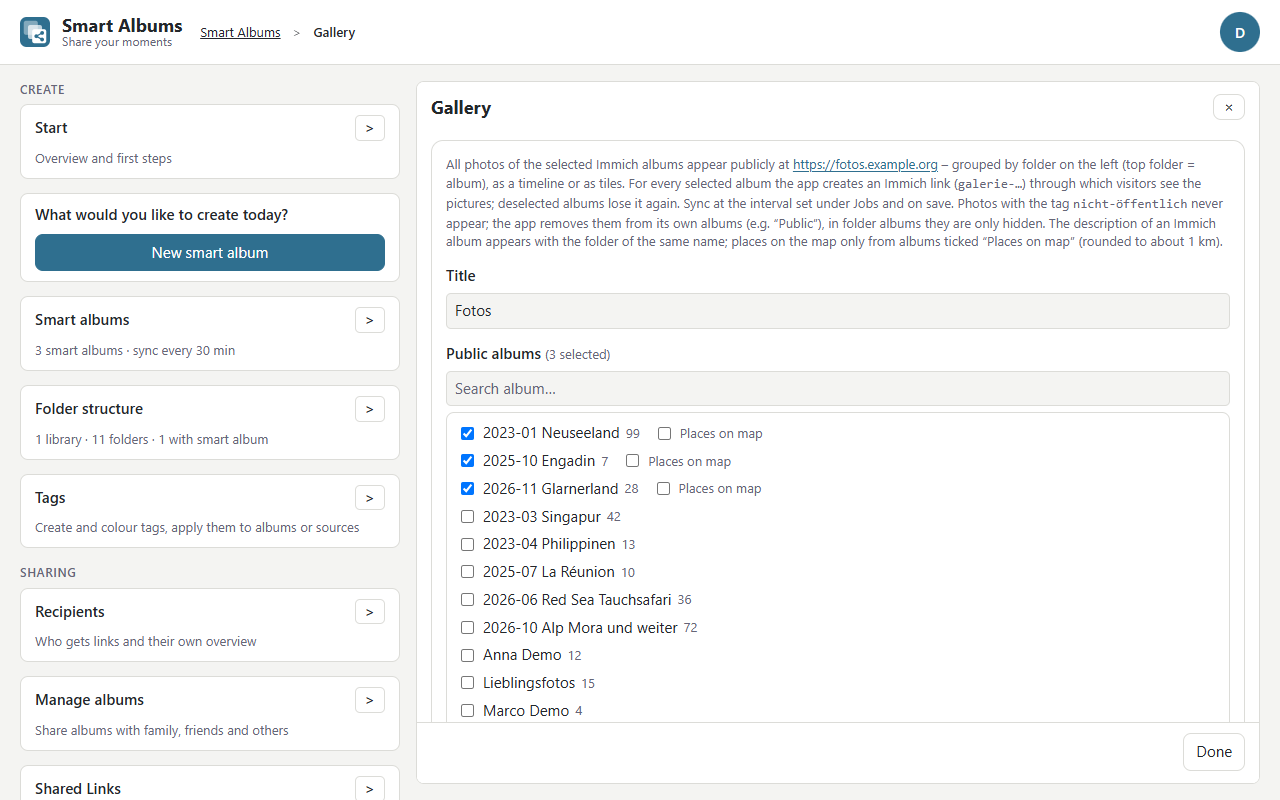
All photos of the chosen Immich albums appear publicly on their own page, grouped by folder, as a timeline or as tiles.
- Set a title and choose albums.
- Set download, folder names, descriptions and search engines.
- Fill in author, contact and “About this page”, and an app icon if you like.
Photos with the tag not-public stay out. The gallery syncs on the schedule under Jobs and when you save.
Folder structure
If your photos are in an external library, Folder structure shows the folders as a tree. On the right is the number of photos including all subfolders; “Album” marks folders with a smart album.
A click opens the folder: the path at the top, then the subfolders as tiles, then the photos of this level. “incl. subfolders” shows all photos below.
+ Smart album from this folder opens “New smart album” with type “Folder”. More in Photos and folders.
Manage tags
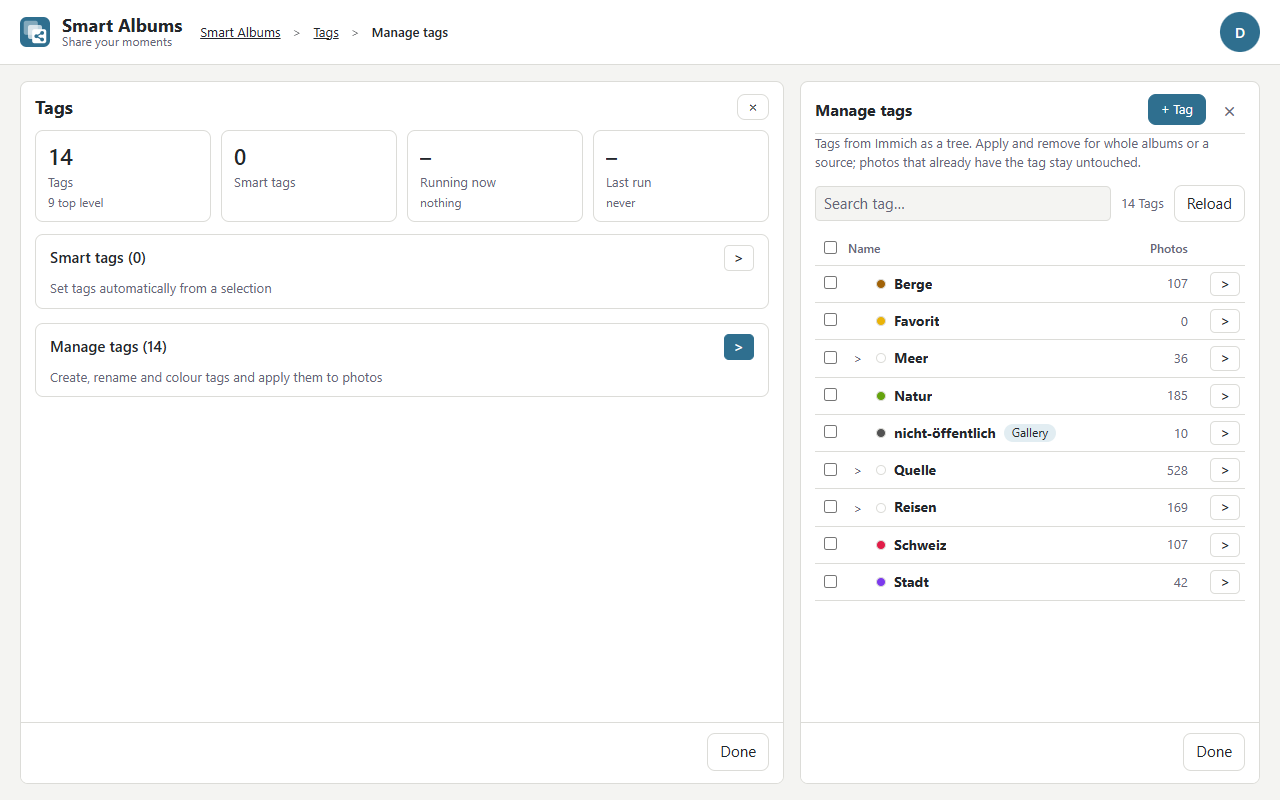
Under Tags › Manage tags you see all tags from Immich as a tree, with the number of photos. You can create, rename, colour and delete tags. Setting and removing works for whole albums or a source; photos that already have the tag stay untouched.
Tags on photos in an external library need write permission, see Installation.
Smart tags
A smart tag sets a tag on all photos of a selection and, on the schedule, also tags photos added later. It only adds and never removes a tag.
- Tags › Smart tags › “+ Smart tag”.
- Choose a name and a target tag, or create a new tag.
- Selection › “>”: building blocks as for a smart album, plus Source, Tag and Album. Below, you see how many photos match, how many already have the tag and how many will be added.
- “Save and tag now”: the first run starts right away and continues even if you close the page.
If you remove the tag from a photo, the photo goes on the block list and is not tagged again. In the smart tag, “Blocked” › “>” shows these photos; “Allow again” releases them.
Album from a search
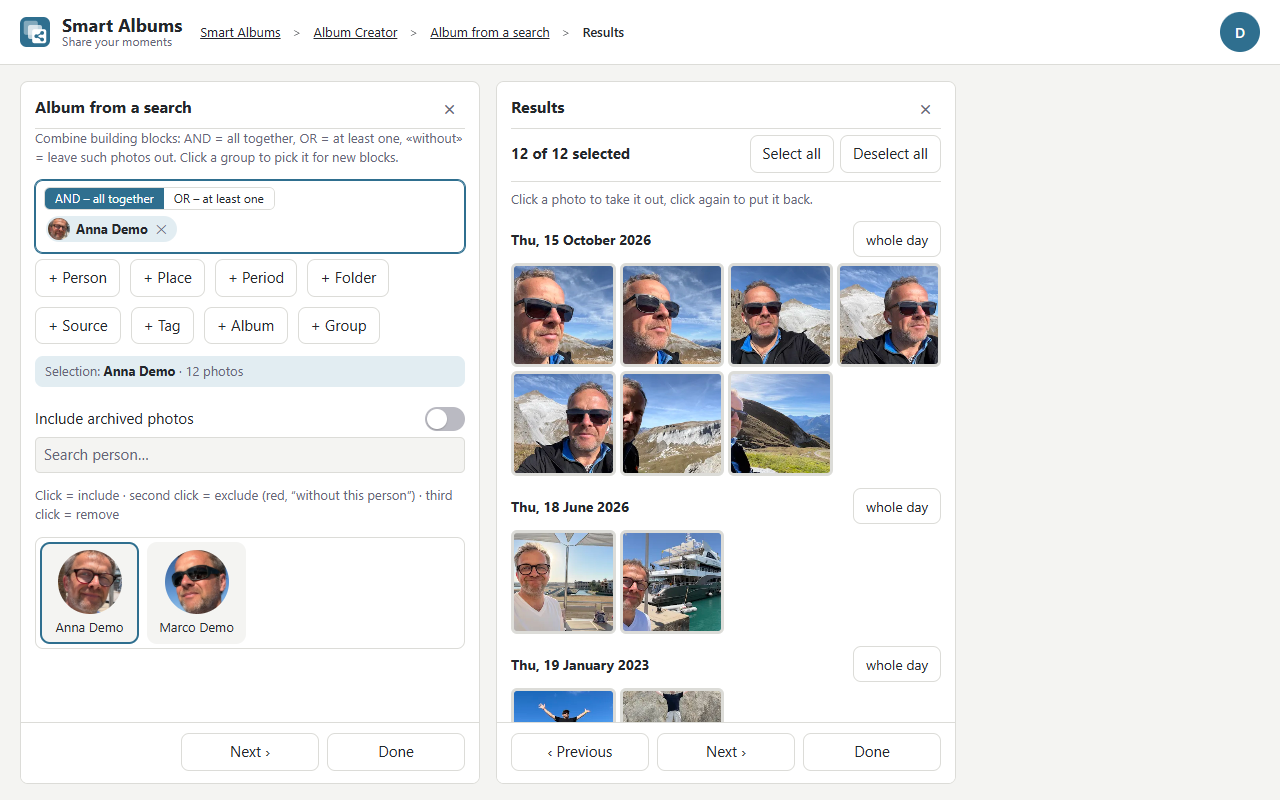
Album Creator › “+ Album from a search” turns a one-time search into a normal Immich album, for example “Peru · May 2012”. It doesn't change by itself afterwards.
- Search: combine people, places, folders, tags and period as for a smart album, plus years and months. Months without a year means “every year”.
- Results: the photos are grouped by day. Tap to deselect single photos, the day or “All” for whole groups.
- Next › Target: a new album or an existing one. For an existing album, photos are only added, never removed.
- Create. Then “Open in Immich”, “Share…” or “Undo”.
“Undo” only works for the last run and only while the album has not been changed or shared.
Album Creator from folders
If an Album Creator is connected (TRIGGER_URL), you start it here: “Create albums only” or “Scan + albums”, which rescans the library first. A schedule lets it run by itself.
Jobs
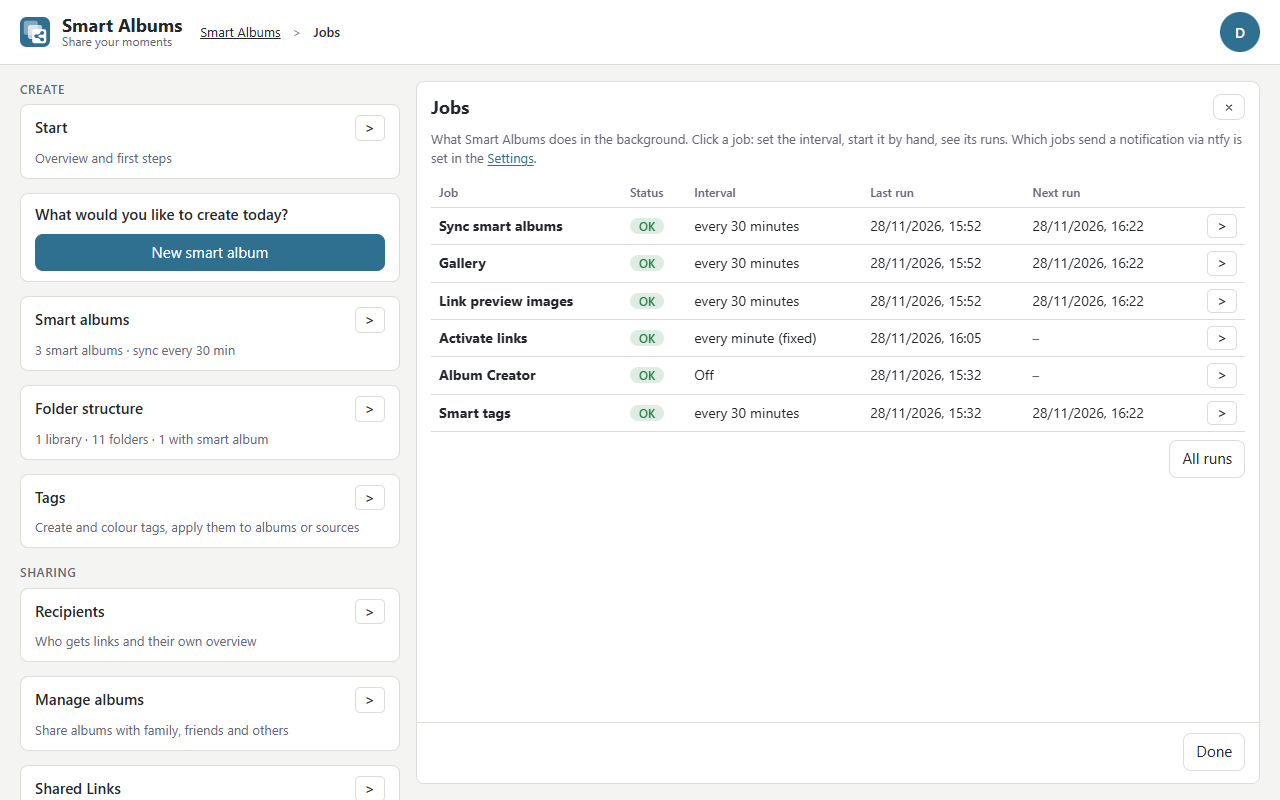
Jobs shows what Smart Albums does in the background: syncing smart albums, gallery, link previews, activating links, Album Creator and smart tags.
- Click a job: set the interval, start it by hand, see its runs.
- Which jobs send a notification via ntfy, on errors or always, is set in the settings.
Log
The log shows who did what and when: links created, changed, deleted, recipients, smart albums, gallery, settings and sign-ins. The last 2000 entries are kept. “Export as CSV” downloads them.
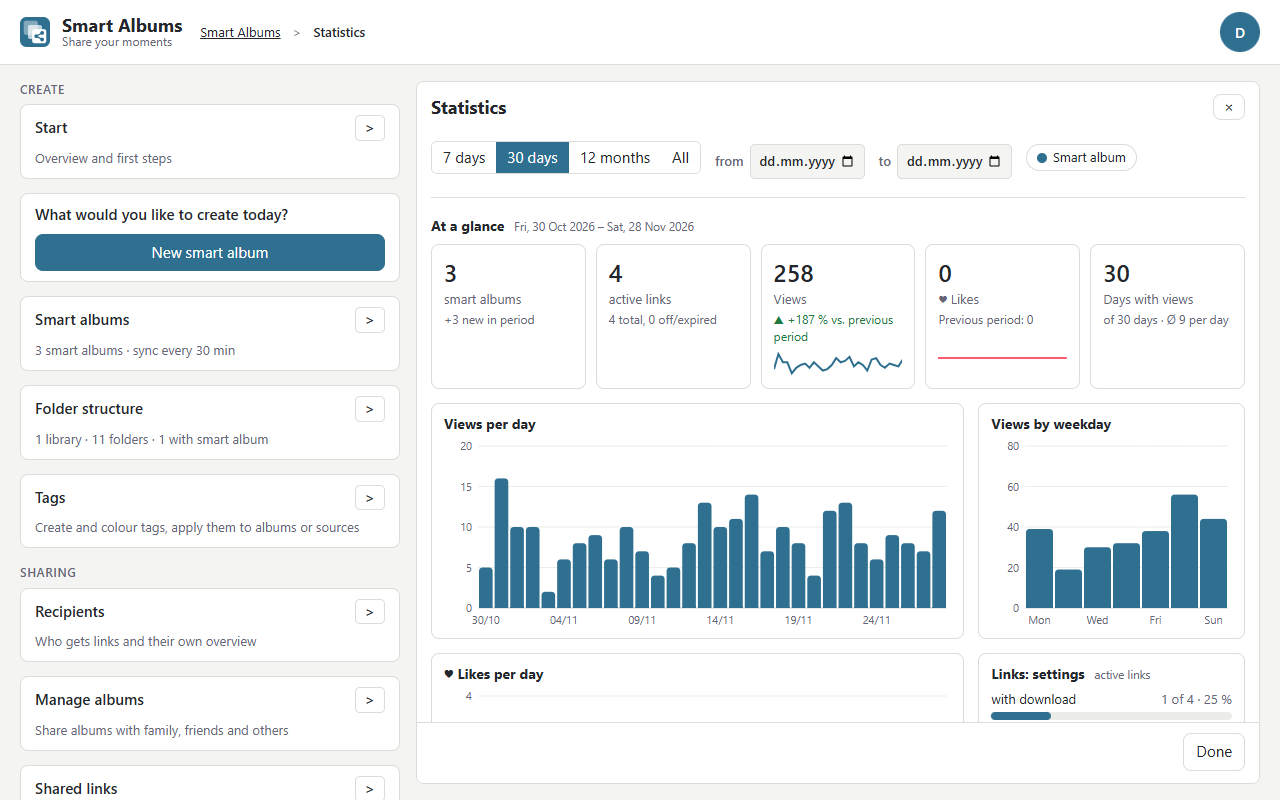
Statistics
Statistics show how often links, overviews and the gallery were viewed. This needs Umami; without website IDs it stays empty.
Connect more Immich Tools
If you use more Immich Tools such as Mosaic or Collage, Smart Albums collects their links and numbers under Shared Links and in the statistics. Each tool gets its own chip. All tools need the same family (FAMILY_ID) and the same SHARES_API_KEY.